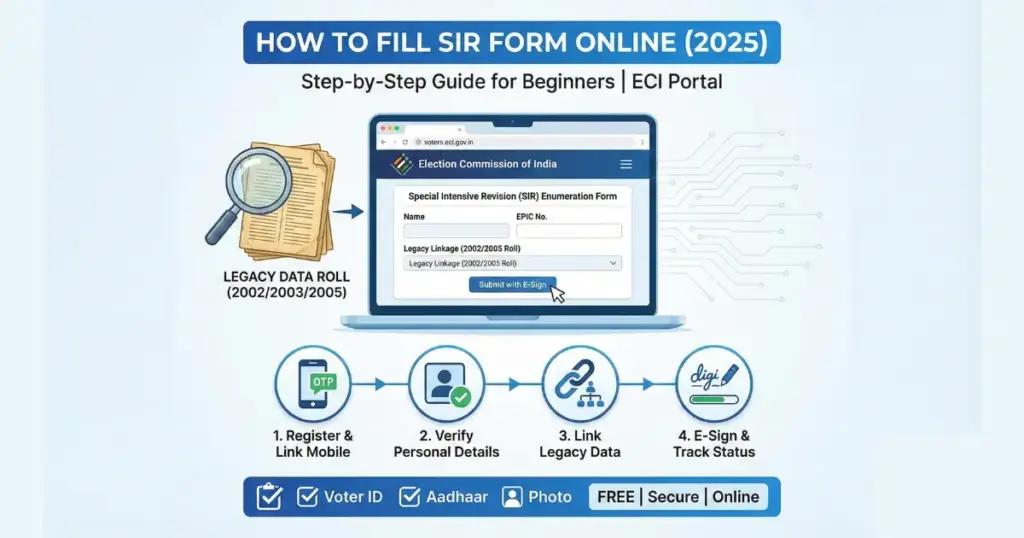
How to Fill SIR Form Online: Step-by-Step Guide for Beginners (2025)
The Election Commission of India has made the Special Intensive Revision process completely digital, allowing eligible voters to update their electoral details from home. This comprehensive guide will walk you through every step of filling your SIR form online, from understanding what it is to downloading your final acknowledgement receipt.
The SIR enumeration form is now mandatory for all existing voters in all states and Union Territories across India, with a qualifying date of January 1, 2026. Unlike traditional offline methods, the online SIR system requires Aadhaar-based e-sign verification and mobile number linkage with your EPIC (Voter ID) for successful submission. Whether you’re a first-time applicant or updating existing voter details, this beginner-friendly guide covers everything you need to know about the SIR registration process.
What is SIR Form?
SIR stands for Special Intensive Revision. It is a verification form released by the Election Commission of India (ECI).
- Full Form: Special Intensive Revision Enumeration Form.
- Purpose: To link your current Voter ID (EPIC) with “Legacy Data” (voter lists from 2002, 2003, or 2005 depending on your state) to confirm your residency and lineage.
- Who Needs to Fill It: Every registered voter in India whose state is undergoing the SIR exercise. If you do not fill this, your name might be marked for verification or deletion.
Important Note: The SIR Form is not for new voter registration (Form 6). It is for existing voters to verify their details.
Full Form of SIR: Special Intensive Revision (SIR)
The SIR form, officially known as the Special Intensive Revision enumeration form, is a nationwide exercise undertaken by the Election Commission of India to ensure accurate and updated electoral rolls. This process aims to include all eligible Indian citizens in the voter list while removing ineligible, deceased, or duplicate entries.
Purpose of SIR Form
The Election Commission conducts SIR for three primary objectives:
- Add new eligible voters – Especially those turning 18 years old by the qualifying date (January 1, 2026).
- Remove ineligible entries – Including deceased voters, duplicates, and those who have shifted to different constituencies.
- Correct existing voter details – Update names, addresses, photos, and other personal information to ensure accuracy.
Who Needs to Fill SIR Form?
Every registered voter in the following 12 states and Union Territories must fill the SIR enumeration form:
SIR Form Online Tamil Nadu – All existing voters in Tamil Nadu must submit the enumeration form
SIR Form Online Uttar Pradesh – Mandatory for all UP voters on the electoral roll as of October 27, 2025
SIR Form Online West Bengal – Required for all registered voters in West Bengal
SIR Form Online Kerala – All Kerala voters must complete the SIR process
SIR Form Online Gujarat – Applicable to all Gujarat voters
SIR Form Online Madhya Pradesh – Mandatory for MP voters
SIR Form Online Rajasthan – Required for all Rajasthan voters
SIR Form Online Chhattisgarh – Applicable to Chhattisgarh voters
SIR Form Online Goa – Mandatory for Goa voters
Additionally, the exercise covers Puducherry, Andaman & Nicobar Islands, and Lakshadweep.
Eligibility Criteria for SIR Form 2025
To fill the SIR form online, you must meet these requirements:
- Age: Must be 18 years or above as of January 1, 2026 (qualifying date)
- Citizenship: Must be an Indian citizen
- Residency: Must be ordinarily residing in one of the 12 states/UTs where SIR is being conducted
- EPIC Linkage: Your mobile number must be linked to your EPIC (Voter ID) number for online submission
- Aadhaar: Must have an active Aadhaar card for e-sign verification
- Name Matching: Name on EPIC must exactly match the name on your Aadhaar card for successful e-sign
Important Note: If your mobile number is not linked to your EPIC, you must first update it by submitting Form 8 before proceeding with the online SIR form.
Documents Required for SIR Form Online
For Existing Voters (Updating Details)
- EPIC Number (10-digit Voter ID number)
- Active mobile number linked to EPIC
- Aadhaar card for e-sign verification
- Recent passport-size color photograph (white background)
- Address proof (if updating address): Ration card, utility bills, Aadhaar, passport, bank passbook
For New Voters (First-Time Registration)
- Age Proof (any one):
- Birth certificate
- Matriculation/10th standard certificate
- Aadhaar card
- Passport
- PAN card
- Driving license
- Address Proof (any one):
- Aadhaar card
- Passport
- Ration card
- Bank passbook/statement
- Utility bills (electricity, water, gas)
- Rent agreement
- Property documents
- Identity Proof:
- Aadhaar card
- Passport
- Voter ID (if any)
- Government employee ID card
- Pension payment order
- Recent passport-size photograph (specifications: white background, clear face, open eyes)
Document Specifications
Photo Requirements:
- Format: JPG/JPEG
- Size: Less than 50 KB (typically)
- Dimensions: Passport size (recent photograph)
- Background: White or light-colored
- Quality: Clear, face visible, no sunglasses or caps
Document Upload Format:
- PDF or JPG format
- File size: Usually less than 200 KB per document
- Clear and readable scans
Official Website for SIR Form Online
National Portal
The primary official website for SIR form submission is managed by the Election Commission of India:
Voters’ Service Portal: The national ECI portal (voters.eci.gov.in) provides access to fill enumeration forms online for all states
ECI Main Website: The official ECI website (eci.gov.in) contains notifications, guidelines, and links to state-specific portals
State-Wise CEO Websites
Each state has its dedicated Chief Electoral Officer (CEO) website with SIR-specific information:
- CEO Tamil Nadu: elections.tn.gov.in
- CEO West Bengal: ceowestbengal.wb.gov.in
- CEO Kerala: ceo.kerala.gov.in
- CEO Uttar Pradesh: ceouttarpradesh.nic.in
- CEO Gujarat: ceo.gujarat.gov.in
- CEO Madhya Pradesh: ceomadhyapradesh.nic.in
- CEO Delhi: ceodelhi.gov.in
- CEO Goa: ceogoa.nic.in
Security Alert: Always verify that the website URL ends with “.gov.in” before entering any personal information or documents. Avoid third-party websites claiming to process SIR forms.
Step-by-Step Process to Fill SIR Form Online (Detailed Guide)
Step 1: Link Mobile Number to EPIC (Prerequisite)
Before filling the SIR form online, ensure your mobile number is linked to your EPIC:
1.1 Visit the Voters’ Service Portal
1.2 Click on “Sign Up” or “Register”
1.3 Enter your mobile number, email ID, and captcha code
1.4 Verify your mobile number using the OTP sent to your phone
1.5 After verification, log in and enter your EPIC number
1.6 Complete the linking process by verifying details
💡 Pro Tip: If your mobile is not linked, you must submit Form 8 to update mobile number before proceeding with online SIR submission.
Step 2: Access the SIR Form Portal
2.1 Open your web browser (Chrome, Firefox, Safari recommended)
2.2 Visit the Voters’ Service Portal or your state’s CEO website
2.3 Look for the “Services” section on the homepage
2.4 Click on “Fill Enumeration Form” or “SIR Form Online” option
2.5 Select your state from the dropdown menu
Mobile Users: The portal is mobile-friendly and can be accessed through smartphones as well
Desktop Users: For better form-filling experience with document uploads, desktop/laptop is recommended
Step 3: Login with EPIC Number
3.1 On the login page, enter your 10-digit EPIC number (Voter ID number)
3.2 The system will auto-fetch your existing voter details from the database
3.3 An OTP will be sent to your registered mobile number
3.4 Enter the OTP within the time limit (usually 3-5 minutes)
3.5 Click “Verify and Proceed”
⚠️ Common Issue: If OTP doesn’t arrive, check your mobile number linkage and network connectivity. Wait 2 minutes before requesting a new OTP.
Step 4: Select Your Category
The portal will ask you to choose one of three categories:
Option A: Your name existed in the previous SIR roll (2002 or later)
- System displays your previous details automatically
- Verify and confirm the information
Option B: Your name didn’t exist, but your parents’ names appeared in the previous roll
- Enter your parent’s EPIC number or details
- Provide relationship proof
Option C: Neither your name nor your parents’ names appeared on the list
- Select a relative whose name is on the electoral roll
- Provide relative’s details and relationship
🔍 Important: Many applicants make mistakes here by filling the wrong columns. Read the instructions carefully before selecting your category.
Step 5: Fill Personal Details
The enumeration form contains several sections. Fill each field carefully:
5.1 Basic Information
Full Name (in English):
- Enter exactly as per your identity documents
- Use capital letters
- No special characters or numbers
Full Name (in Regional Language):
- Optional but recommended
- Use your state’s official language
Father’s/Mother’s/Husband’s Name:
- Enter complete name
- Select relationship from dropdown
5.2 Date of Birth
- Enter in DD/MM/YYYY format
- Must show age 18+ as of January 1, 2026
- Cross-verify with your age proof document
5.3 Gender
- Select Male/Female/Third Gender from dropdown
5.4 Contact Information
Mobile Number:
- Enter 10-digit active mobile number
- This should be the same number linked to EPIC
- Will be used for all future communications
Email ID (Optional but Recommended):
- Enter active email address
- Used for acknowledgement and updates
5.5 Current Address
House/Building Number:
- Enter exact house/flat number
Street/Road Name:
- Provide complete street or lane name
Locality/Area:
- Enter your locality or area name
Landmark (Optional):
- Add nearby landmark for easy identification
Village/Town/City:
- Enter as per your address proof
PIN Code:
- Must be valid 6-digit code
- Auto-fills district and state in some portals
District:
- Select from dropdown or auto-filled
State:
- Auto-selected based on portal you’re using
5.6 Category Selection (If Applicable)
- General
- Scheduled Caste (SC)
- Scheduled Tribe (ST)
- Other Backward Class (OBC)
Step 6: Upload Recent Photograph
6.1 Click on the “Upload Photo” button
6.2 Select your passport-size color photograph (saved on device)
6.3 Ensure photo meets specifications:
- White or light background
- Face clearly visible
- Eyes open, neutral expression
- No caps, sunglasses, or heavy filters
- File size: Less than 50 KB
- Format: JPG/JPEG
6.4 Click “Upload” and wait for confirmation message
6.5 Preview the uploaded photo to ensure clarity
💡 Pro Tip: Take a fresh photo with your smartphone against a white wall, crop to passport size using free apps, and compress if needed before uploading.
Step 7: Upload Supporting Documents (If Required)
For new voters or those updating information:
7.1 Click “Upload Documents” section
7.2 Select document type from dropdown:
- Age Proof
- Address Proof
- Identity Proof
7.3 Choose file from your device (PDF or JPG)
7.4 Ensure file size is within limit (usually 200 KB)
7.5 Upload each required document separately
7.6 Verify all uploads show “Successfully Uploaded” status
Step 8: Review and Preview
8.1 After filling all details, click “Preview” or “Review Form”
8.2 The system generates a complete preview of your enumeration form
8.3 Carefully verify every detail:
- Name spelling
- Date of birth
- Address accuracy
- Mobile number
- Uploaded photo quality
- Document attachments
8.4 If any error found, click “Edit” to make corrections
8.5 Re-preview after making changes
⚠️Warning: Once submitted with e-sign, you cannot edit the form easily. Some corrections may require contacting your BLO (Booth Level Officer).
Step 9: Submit with Aadhaar E-Sign
9.1 After confirming all details are correct, click “Submit with E-Sign”
9.2 You’ll be redirected to Aadhaar e-sign portal
9.3 Enter your 12-digit Aadhaar number
9.4 Ensure the name on Aadhaar exactly matches your EPIC name
9.5 Click “Request OTP”
9.6 Enter the OTP sent to your Aadhaar-linked mobile number
9.7 Complete the e-sign authentication
9.8 System validates and processes your signature
9.9 You’ll be redirected back to the SIR portal
🔐 Security Note: The Aadhaar e-sign is legally valid and ensures that only you can submit your form.
Step 10: Declaration and Final Submission
10.1 Read the declaration statement carefully
10.2 Check the box “I hereby declare that the information provided is true and correct”
10.3 Click “Final Submit”
10.4 Wait for the submission confirmation message
10.5 Note down your Application Reference Number/Acknowledgement Number
10.6 You’ll receive confirmation SMS and email (if provided)
✅ Success Indicator: A green confirmation message with acknowledgement number confirms successful submission.
How to Upload Documents Properly for SIR Form
Before Uploading:
- Scan documents in good lighting
- Ensure text is clearly readable
- Remove shadows and blur
- Keep file size under 200 KB
- Use PDF or JPG format only
- Name files clearly (e.g., “Age_Proof.pdf”, “Address_Proof.jpg”)
During Upload:
- Select correct document category from dropdown
- Upload one document at a time
- Wait for “Upload Successful” message before proceeding
- Don’t refresh page during upload
- Verify thumbnail preview after upload
Photo Upload Checklist:
- Recent photograph (taken within last 3 months)
- White or light-colored plain background
- Face occupies 70-80% of frame
- No shadows on face
- Eyes open and clearly visible
- No sunglasses, caps, or filters
- Proper lighting (avoid overexposure or darkness)
- JPG/JPEG format only
- File size: 20-50 KB
Common Upload Errors and Solutions:
| Error Message | Solution |
|---|---|
| File size too large | Compress image using online tools or photo apps |
| Invalid file format | Convert to JPG or PDF format |
| Upload failed | Check internet connection and retry |
| Document not clear | Re-scan with better lighting and focus |
| Photo rejected | Ensure white background and proper framing |
How to Pay Application Fee (If Applicable)
Currently, there is no application fee for filling the SIR enumeration form online. The entire process is free of cost and conducted by the Election Commission of India at no charge to voters.
⚠️ Fraud Alert: Be cautious of websites or agents demanding money to fill SIR forms. The official ECI portal and state CEO websites do not charge any fee.
How to Check SIR Application Status
Online Status Check Method
Method 1: Through Voters’ Service Portal
Step 1: Visit the Voters’ Service Portal
Step 2: Click on “Track Application Status” or “Check Status”
Step 3: Select form type as “SIR Enumeration Form” or “Special Revision”
Step 4: Enter your Application Reference Number or EPIC Number
Step 5: Enter registered mobile number
Step 6: Click “Track Status”
Step 7: View current status:
- Form Submitted
- Under Verification by BLO
- Approved/Pending
- Documents Required
- Rejected (with reason)
Method 2: Through State CEO Website
Visit your state’s CEO website and look for “SIR Status” or “Application Tracking” section with similar steps as above.
Method 3: SMS Status Check
Some states provide SMS-based tracking:
- Send SMS in format: STATUS [EPIC Number] to the designated number (check your state CEO website)
Method 4: Through BLO Contact
Contact your assigned Booth Level Officer (BLO) whose details are available on the CEO website or your enumeration form.
Status Verification Timeline
- Immediate (0-1 day): Form Submitted confirmation
- 3-7 days: BLO verification begins
- By December 4, 2025: Enumeration period ends
- December 9, 2025: Draft electoral roll published
- December 9, 2025 – January 8, 2026: Claims and objections period
- February 7, 2026: Final electoral roll publication
How to Download Acknowledgement/Receipt
Immediate Download After Submission
Step 1: After successful form submission, an acknowledgement page appears
Step 2: Click “Download Acknowledgement” or “Print Receipt” button
Step 3: PDF file downloads automatically to your device
Step 4: Save this PDF in a secure location
Step 5: Take printout for your records (recommended)
Download Later
If you missed downloading immediately:
Step 1: Log in to the Voters’ Service Portal
Step 2: Go to “My Applications” or “Application History”
Step 3: Find your SIR form submission
Step 4: Click on “Download Acknowledgement” option
Step 5: Enter EPIC number and application reference number
Step 6: Download the PDF receipt
What Information Does Acknowledgement Contain?
- Application Reference Number
- Applicant’s Name and EPIC Number
- Date and Time of Submission
- Application Type (SIR Enumeration)
- Submitted Details Summary
- Status: Submitted Successfully
- Next Steps and Timeline
- BLO Contact Information
💾 Important: Keep both digital and physical copies of acknowledgement for future reference and verification.
Common Mistakes to Avoid
Top Errors Applicants Make
1. Filling Wrong Category Columns
Many voters whose names are not on the 2002 list incorrectly fill columns meant for voters already on the list. Read category descriptions carefully before selecting.
2. Mobile Number Not Linked to EPIC
Attempting online submission without first linking mobile to EPIC leads to failed submissions. Complete Form 8 linkage before starting.
3. Name Mismatch Between Aadhaar and EPIC
The e-sign fails if your Aadhaar name doesn’t exactly match your EPIC name. Get name correction done before applying online.
4. Using Correction Fluid or Overwriting (Offline Forms)
BLOs reject forms with cutting, overwriting, or whitener marks. Start fresh if you make an error on paper forms.
5. Poor Quality Photo Upload
Blurry, dark, or improperly framed photos get rejected. Follow photo specifications strictly.
6. Incorrect Relative Information
Providing wrong parent or relative details when their names should be on electoral roll causes verification delays.
7. Multiple Form Submissions
Submitting the form multiple times creates duplicate entries and confusion. Submit only once.
8. Missing OTP Validity Period
Not entering OTP within time limit requires starting the process again. Keep mobile handy during form filling.
9. Incomplete Address Details
Vague or incomplete addresses delay BLO verification. Provide complete, accurate address with PIN code.
10. Not Reading Instructions
Rushing through without reading field-specific instructions leads to errors. Take time to understand each section.
Important Tips for First-Time Applicants
Before You Start
✓ Verify EPIC-Mobile Linkage: Confirm your mobile is linked days before deadline
✓ Check Name Matching: Ensure Aadhaar and EPIC names match exactly
✓ Prepare Documents: Keep all required documents scanned and ready
✓ Take Fresh Photo: Prepare a proper passport-size photo meeting all specifications
✓ Stable Internet: Use reliable internet connection to avoid form timeouts
✓ Keep Aadhaar Accessible: Have Aadhaar card ready for e-sign OTP
During Form Filling
✓ Use Desktop for First Time: Easier navigation and document upload on larger screens
✓ Fill Slowly and Carefully: Don’t rush; each field matters
✓ Save Draft if Available: Some portals allow saving progress
✓ Cross-Check Spellings: Verify name, father’s name spelling multiple times
✓ Use English for Name: Even if regional language option exists, fill English name correctly
✓ Accurate DOB: Enter date of birth exactly as per your age proof
✓ Complete Address: Include house number, street, landmark, area, PIN code
After Submission
✓ Download Acknowledgement Immediately: Don’t wait; download PDF right away
✓ Take Screenshot: Capture submission confirmation screen
✓ Note Reference Number: Write down application reference number
✓ Check Email/SMS: Verify you received confirmation message
✓ Track Status Regularly: Monitor application status every 3-4 days
✓ Cooperate with BLO: Respond promptly if BLO contacts for verification
✓ Check Draft Roll: Verify your name appears in draft electoral roll on December 9, 2025
Mobile vs Desktop Filling Guide
| Aspect | Mobile Phone | Desktop/Laptop |
|---|---|---|
| Form Navigation | May require more scrolling | Better overview of entire form |
| Document Upload | Camera option available | Must have scanned files ready |
| Photo Capture | Can take live photo directly | Need pre-captured photo file |
| Typing Comfort | On-screen keyboard | Physical keyboard easier |
| Internet Stability | May depend on mobile data | Generally more stable connection |
| Multi-tasking | Difficult to reference documents | Can open multiple windows |
| Recommendation | Suitable for experienced users | Better for first-time applicants |
Troubleshooting Section
Failed Submission Issues
Problem: Form shows “Submission Failed” after clicking submit
Solutions:
- Check internet connectivity and retry
- Clear browser cache and cookies
- Try different browser (Chrome recommended)
- Ensure all mandatory fields are filled with red asterisk (*)
- Verify file upload sizes are within limit
- Try during non-peak hours (early morning or late evening)
Problem: “Session Timeout” error appears
Solutions:
- Don’t keep form idle for more than 10-15 minutes
- Complete one section at a time continuously
- Have all documents ready before starting
- Re-login and start fresh if session expires
- Use faster internet connection
OTP Issues
Problem: OTP not received for EPIC login
Solutions:
- Verify mobile number is correctly linked to EPIC
- Check mobile network connectivity
- Wait 2-3 minutes before requesting new OTP
- Check SMS inbox and spam folder
- Ensure mobile number is active and not on DND for transactional SMS
- Try alternate verification method if available
Problem: Aadhaar e-sign OTP not arriving
Solutions:
- Confirm Aadhaar-linked mobile number is active
- Check if you’ve exhausted daily OTP limit (usually 3-5 attempts)
- Try after 30 minutes if multiple failed attempts
- Ensure mobile has network coverage
- Contact Aadhaar helpline if persistent issue
Document Upload Errors
Problem: “File size too large” error
Solutions:
- Compress images using online tools (TinyPNG, CompressJPEG)
- Reduce PDF size using PDF compressor tools
- Take photo in lower resolution if using smartphone
- Crop unnecessary margins from scanned documents
Problem: “Invalid file format” error
Solutions:
- Convert documents to JPG or PDF only
- Don’t upload HEIC, PNG, or other formats
- Use online converters if needed (HEIC to JPG, PNG to JPG)
- Re-scan documents if quality is poor after conversion
Problem: Photo gets rejected after upload
Solutions:
- Ensure white or light background (no patterns)
- Remove shadows by using natural lighting
- Center your face properly in frame
- Avoid filters, beauty modes, or editing
- Ensure image is recent (within 3 months)
- Try different photo altogether if repeated rejection
Name Mismatch Errors
Problem: E-sign fails due to name mismatch between EPIC and Aadhaar
Solutions:
- First get name correction done on EPIC or Aadhaar (whichever has error)
- Submit Form 8 for EPIC name correction
- Visit Aadhaar center for Aadhaar name update
- Wait for correction to reflect in system (7-15 days)
- Then proceed with online SIR form
Alternative:
Application Status Not Showing
Problem: Unable to track application status
Solutions:
- Wait 24-48 hours after submission for status to update
- Verify you’re using correct Application Reference Number
- Check on both national portal and state CEO website
- Use EPIC number instead of reference number if option available
- Contact BLO directly with acknowledgement proof
Form Correction After Submission
Problem: Realized mistake after submitting form
Solutions:
- Cannot edit online after e-sign submission
- Contact your BLO immediately with acknowledgement
- Submit objection/correction during claims period (Dec 9, 2025 – Jan 8, 2026)
- Provide corrected information with supporting documents to BLO
- May need to fill fresh form in some cases
What is the last date to fill SIR form online in 2025?
The enumeration period for SIR Phase-II ends on December 4, 2025. However, claims and objections can be submitted until January 8, 2026. It’s recommended to fill the form well before the deadline to avoid last-minute technical issues.
Can I fill SIR form online without Aadhaar?
No, Aadhaar-based e-sign is mandatory for online SIR form submission. If you don’t have Aadhaar or face name mismatch issues, you must submit the offline enumeration form through your Booth Level Officer (BLO).
Is there any fee to fill SIR form online?
No, filling the SIR enumeration form is completely free of cost. The Election Commission does not charge any fee for this service. Be cautious of fraudulent websites demanding payment.
How do I link my mobile number to EPIC for SIR form?
Visit the Voters’ Service Portal, click “Sign Up,” enter your mobile number and verify with OTP, then log in and link your EPIC number. Alternatively, submit Form 8 (mobile number update form) to your Electoral Registration Officer.
What if my name doesn’t match between Aadhaar and Voter ID?
If there’s a name mismatch, the Aadhaar e-sign will fail during online submission. You have two options: either get the name corrected on EPIC (through Form 8) or Aadhaar (at Aadhaar center) or submit the offline form through your BLO.
Can I fill SIR form for my family members?
No, the online SIR form must be filled by the elector themselves as it requires Aadhaar-based e-sign authentication. However, for offline submission, family members can help fill the form which is then submitted to the BLO.
How long does BLO verification take after submitting SIR form?
BLO verification typically takes 3-7 days after submission. The draft electoral roll will be published on December 9, 2025, where you can verify if your details are correctly included.
What happens if I don’t fill the SIR enumeration form?
If you’re an existing voter and don’t fill the SIR form, your previous details may be carried forward, but there’s risk of your name being removed if the BLO cannot verify your current residence during house-to-house enumeration. For new voters, not filling means you won’t be added to the electoral roll.
Can I download SIR form in PDF and fill offline?
Yes, while the online process is encouraged, offline enumeration forms are distributed by BLOs during house-to-house visits. You can also request a blank form from your BLO and submit it offline after filling.
How to check if my name is in the final voter list after SIR?
The draft electoral roll will be published on December 9, 2025, and the final roll-on February 7, 2026. You can check your name on the Voters’ Service Portal by entering your details or download the PDF of your constituency’s voter list from your state CEO website.